On this page
- 1. Patching and OS lifecycle
- 2. SSH
- 3. Users, passwords and sudo
- 4. Firewall and exposed services
- 5. Kernel and network sysctl hardening
- 6. File permissions and privilege escalation paths
- 7. Logging, monitoring and time
- 8. Web servers and applications
- Check the whole list in one command
- Frequently asked questions
This checklist covers Ubuntu 22.04 and 24.04, Debian 12 and 13, RHEL 9 and its rebuilds (Rocky, AlmaLinux), and Amazon Linux 2023. It follows the spirit of the CIS Benchmarks Level 1 but is written for people who have to keep production running. Every item has an ID that matches the check in our audit script, so you can go straight from a FAIL in the report to the fix here.
Before you change SSH or the firewall
Keep a second session open, or console access from your cloud provider, until you have confirmed you can still log in. Test with sshd -t before every reload.
1. Patching and OS lifecycle
- Run a supported release (SYS-002). Ubuntu 20.04 left standard support in 2025, CentOS 7 and Debian 10 are end-of-life. No hardening makes up for an OS that no longer gets security fixes.
- Apply security updates now (PAT-001):
sudo apt update && sudo apt upgradeorsudo dnf upgrade --security. - Reboot after kernel and glibc updates (PAT-002). Check
/var/run/reboot-requiredon Debian/Ubuntu orneeds-restarting -ron RHEL. - Turn on automatic security updates (PAT-004).
# Debian / Ubuntu
sudo apt install unattended-upgrades
sudo dpkg-reconfigure -plow unattended-upgrades

# RHEL / Rocky / Alma / Amazon Linux 2023
sudo dnf install dnf-automatic
sudo sed -i 's/^upgrade_type.*/upgrade_type = security/' /etc/dnf/automatic.conf
sudo systemctl enable --now dnf-automatic-install.timer
2. SSH
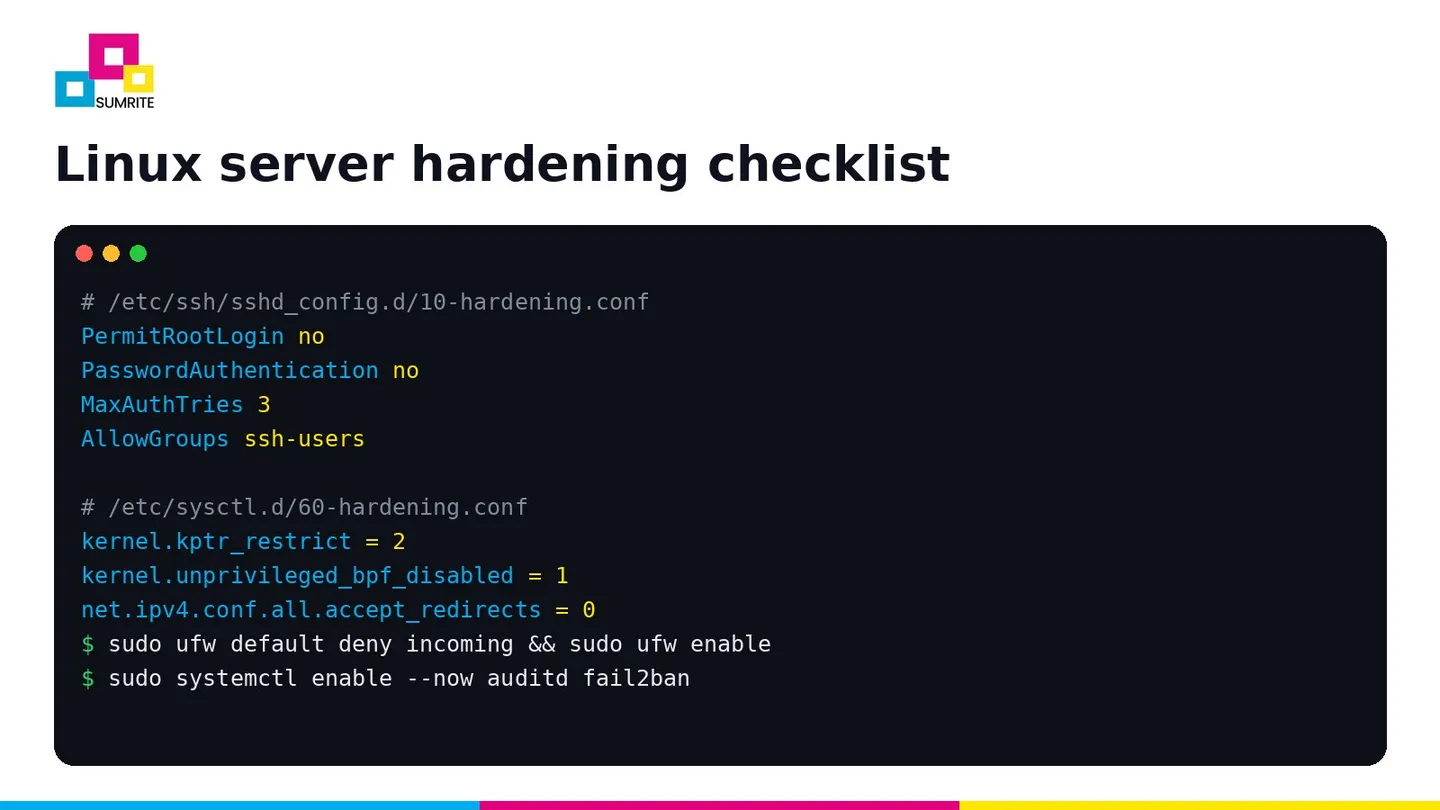
SSH is the front door of almost every Linux server, and the most common finding we report on it is still password authentication left on. Put your settings in a drop-in file so package updates do not overwrite them.
# /etc/ssh/sshd_config.d/10-hardening.conf
PermitRootLogin no
PasswordAuthentication no
KbdInteractiveAuthentication no
PermitEmptyPasswords no
MaxAuthTries 3
LoginGraceTime 30
X11Forwarding no
AllowTcpForwarding no
ClientAliveInterval 300
ClientAliveCountMax 2
AllowGroups ssh-users
KexAlgorithms curve25519-sha256,curve25519-sha256@libssh.org,diffie-hellman-group16-sha512
Ciphers chacha20-poly1305@openssh.com,aes256-gcm@openssh.com,aes128-gcm@openssh.com
MACs hmac-sha2-512-etm@openssh.com,hmac-sha2-256-etm@openssh.com
sudo groupadd -f ssh-users && sudo usermod -aG ssh-users "$USER"
sudo sshd -t && sudo systemctl reload ssh # 'sshd' on RHEL
sudo sshd -T | grep -Ei 'permitrootlogin|passwordauthentication|maxauthtries'On RHEL and its rebuilds, leave the KexAlgorithms, Ciphers and MACs lines out and set the algorithms system-wide with crypto policies instead (on RHEL 9 the DEFAULT policy already drops the weakest algorithms; sudo update-crypto-policies --set FUTURE is stricter if all your clients support it), so SSH, TLS and other libraries stay consistent.
- Root login disabled (SSH-001) and password logins disabled (SSH-002).
- No weak ciphers, MACs or key exchange (SSH-006): no CBC, 3DES, arcfour, hmac-md5, hmac-sha1 or diffie-hellman-group1/group14-sha1.
- Idle timeout (SSH-007) and login allow-list (SSH-009).
- Host keys readable only by root (SSH-010):
chmod 600 /etc/ssh/ssh_host_*_key. - OpenSSH kept up to date. regreSSHion (CVE-2024-6387) showed that even sshd itself needs patching quickly.
3. Users, passwords and sudo
- Only root has UID 0 (USR-001):
awk -F: '$3==0' /etc/passwd. - No empty passwords (USR-002):
sudo awk -F: '$2==""' /etc/shadow. - Modern password hashing (USR-003):
ENCRYPT_METHOD YESCRYPTorSHA512in/etc/login.defs. - Password quality (USR-005): install
libpam-pwqualityand setminlen = 14. - Lockout after failed logins (USR-006):
pam_faillock(authselect enable-feature with-faillockon RHEL). - Service accounts cannot log in (USR-008):
sudo usermod -s /usr/sbin/nologin <account>. - No blanket NOPASSWD sudo (USR-010). Allow specific commands for automation users instead of
ALL. - sudoers owned by root and mode 440 (USR-011).
- Private
~/.ssh(USR-013):chmod 700 ~/.ssh && chmod 600 ~/.ssh/authorized_keys.
4. Firewall and exposed services
Every port that answers on a public interface is attack surface. First see what listens, then close what should not be there.
sudo ss -tulpn- Host firewall on, default deny inbound (NET-010).
- Databases and caches bound to localhost or a private IP (NET-002): MySQL
bind-address = 127.0.0.1, PostgreSQLlisten_addresses = 'localhost', Redisbind 127.0.0.1 -::1withrequirepassor ACLs, MongoDBbindIp: 127.0.0.1. - No Telnet, FTP, TFTP, rsh, NIS, Avahi or CUPS on servers (SRV-001).
- Docker API never on TCP 2375 without TLS, and no one in the
dockergroup who should not be root (CTR-001, CTR-002).
# Ubuntu / Debian
sudo ufw default deny incoming
sudo ufw default allow outgoing
sudo ufw allow from 203.0.113.0/24 to any port 22 proto tcp   # your office or VPN range
sudo ufw allow 443/tcp
sudo ufw enable

# RHEL family
sudo systemctl enable --now firewalld
sudo firewall-cmd --permanent --remove-service=cockpit
sudo firewall-cmd --permanent --add-service=https && sudo firewall-cmd --reload
5. Kernel and network sysctl hardening
These settings cost nothing on a typical server and close off whole classes of local exploits and network tricks.
# /etc/sysctl.d/60-hardening.conf
kernel.randomize_va_space = 2
kernel.kptr_restrict = 2
kernel.dmesg_restrict = 1
kernel.yama.ptrace_scope = 1
kernel.unprivileged_bpf_disabled = 1
fs.suid_dumpable = 0
fs.protected_symlinks = 1
fs.protected_hardlinks = 1
net.ipv4.tcp_syncookies = 1
net.ipv4.conf.all.accept_redirects = 0
net.ipv4.conf.all.send_redirects = 0
net.ipv4.conf.all.accept_source_route = 0
net.ipv4.conf.all.rp_filter = 1
net.ipv4.conf.all.log_martians = 1
net.ipv6.conf.all.accept_redirects = 0
sudo sysctl --systemLeave net.ipv4.ip_forward = 1 only on hosts that route traffic, such as Docker and Kubernetes nodes or VPN gateways (NET-020). Keep SELinux in enforcing mode on RHEL and AppArmor enabled on Ubuntu (KRN-010); fix denials with audit2why rather than switching enforcement off.
6. File permissions and privilege escalation paths
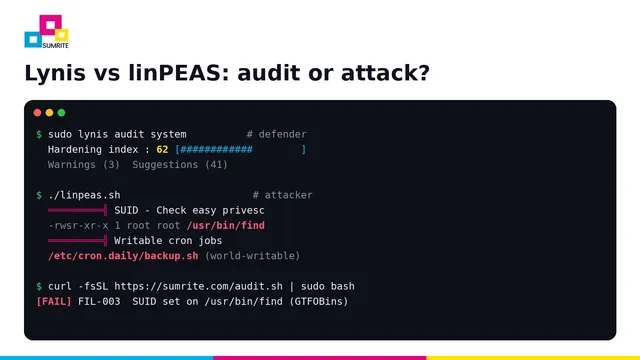
These are exactly what tools like linPEAS look for after a foothold, so find them first. Our Lynis vs linPEAS comparison explains the attacker’s view.
/etc/shadowand/etc/gshadownot world-readable (FIL-001).- No SUID or SGID on shells, interpreters, editors or file tools (FIL-003):
find,vim,python,bash,cp,tarand others listed on GTFOBins give an instant root shell. - No root-equivalent file capabilities (FIL-004): check
getcap -r / 2>/dev/nullforcap_setuidorcap_dac_override. - No world-writable files in system paths (FIL-005) and sticky bit on world-writable directories (FIL-006).
- Cron jobs writable only by root (FIL-008). A root cron script that anyone can edit is a root shell on a timer.
/tmpmountednodev,nosuid,noexec(FIL-009).
sudo find / -xdev -perm -4000 -type f 2>/dev/null
sudo chmod u-s /usr/bin/find              # remove SUID from anything that should not have it
sudo find /etc/cron* /var/spool/cron -perm -o+w -type f 2>/dev/null
7. Logging, monitoring and time
- auditd running (LOG-001) with rules for identity files, sudoers and privileged commands.
- Persistent logs (LOG-002):
Storage=persistentinjournald.confor rsyslog. - Logs shipped off the host (LOG-003) to a SIEM or central log server, so root on the box cannot erase them.
- Brute-force protection (LOG-004): fail2ban with the
sshdjail, or CrowdSec. - NTP synchronised (LOG-005):
timedatectl set-ntp true. - Failed SSH logins reviewed (LOG-010). The audit script lists the top five source IPs.
sudo apt install auditd fail2ban        # or: sudo dnf install audit fail2ban
sudo systemctl enable --now auditd fail2ban
8. Web servers and applications
- nginx
server_tokens off;(SRV-010), ApacheServerTokens ProdandServerSignature Off(SRV-011), PHPexpose_php = Off(SRV-012). - TLS 1.2 and 1.3 only, HSTS and modern security headers. Our free security headers check and SSL/TLS checker test them from outside.
- Run applications as dedicated, unprivileged users, never as root.
Check the whole list in one command
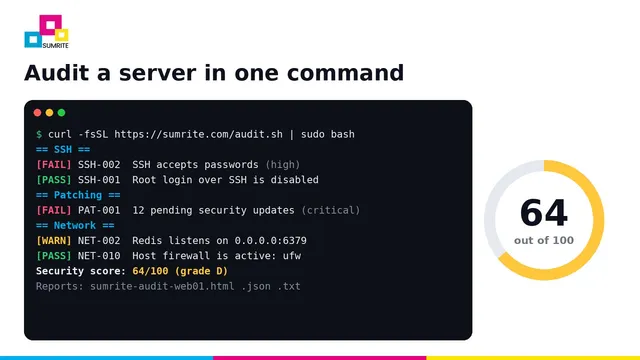
Working through forty items by hand on every server does not scale. Sumrite’s free server security audit script checks nearly everything above, gives the server a score out of 100, and shows the fix for each finding. It is read-only and makes no network connections.
curl -fsSL https://sumrite.com/audit.sh | sudo bashRun it before and after hardening, then weekly from cron with --fail-under 80 so a regression raises an alert. The five-minute server audit guide explains the score and scheduling.
Hardened is not the same as tested
A checklist closes known gaps. Sumrite’s network VAPT and cloud security assessments show what an attacker can still do, with proof and a retest. Get a quote.
Frequently asked questions
What is Linux server hardening?
Linux server hardening is the process of reducing a server's attack surface by changing default settings: disabling unused services, locking down SSH and sudo, applying updates, enabling a firewall, tightening kernel parameters and file permissions, and turning on logging and auditing.
Is there a CIS Benchmark for Ubuntu and RHEL?
Yes. The Center for Internet Security publishes free CIS Benchmarks for Ubuntu, Debian, RHEL and its rebuilds, Amazon Linux, SUSE and others. Level 1 is a practical baseline for most servers; Level 2 is stricter and can affect functionality.
How do I check if my Linux server is hardened?
Run an automated audit. Sumrite's free script checks most of the settings in this checklist in one command: curl -fsSL https://sumrite.com/audit.sh | sudo bash. Lynis and OpenSCAP are other open-source options.
Should I disable SSH password authentication?
Yes, on any internet-facing server. Use SSH keys (ideally with a passphrase or a hardware key), set PasswordAuthentication no and KbdInteractiveAuthentication no, and keep a console or out-of-band access path in case you lock yourself out.
Do I need a host firewall if my cloud provider has security groups?
Yes. Security groups filter traffic at the edge of the instance, but a host firewall such as ufw, firewalld or nftables also protects against misconfigured security groups and limits lateral movement from other hosts in the same network.